
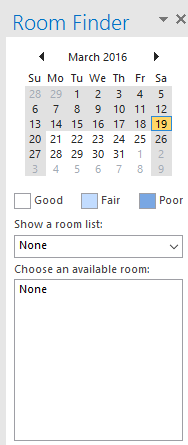
When you have a lot of conference rooms, equipment or special rooms mailboxes it is hard to list or find available free rooms during a particular time slot. Luckily, Office365 and Outlook 2013/2016 have a special feature called ‘Room Lists’, which enable you to find and schedule a room quickly based on availability and offer suggestions during room reservation.
In simple terms Room List work as distribution groups for conference or other types of rooms.
Use PowerShell to login to Office365:
#Connect to Office365
Import-Module MSOnline
$O365Cred = Get-Credential
$O365Session = New-PSSession –ConfigurationName Microsoft.Exchange -ConnectionUri https://ps.outlook.com/powershell -Credential $O365Cred -Authentication Basic -AllowRedirection
Import-PSSession $O365Session
Create a room list:
New-DistributionGroup -Name HQ -DisplayName "HQ" –PrimarySmtpAddress [email protected] –RoomList
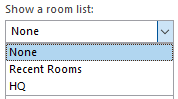
Add rooms to a list:
Add-DistributionGroupMember –Identity "HQ" -Member [email protected]
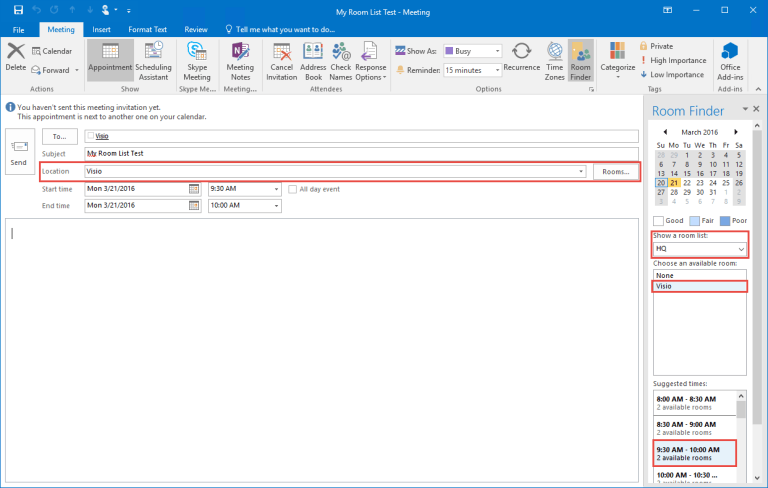
Check what Room Lists you have:
Get-DistributionGroup | Where {$_.RecipientTypeDetails -eq "RoomList"} | Format-Table DisplayName,Identity,PrimarySmtpAddress
Check what conference rooms are part of a particular room list:
Get-DistributionGroupMember –Identity "HQ"
Author

Related Posts

Provisioning a New Office 365 User and Mailbox from Exchange Hybrid via PowerShell
Working with many Office365 clients, I receive queries on how to go about provisioning users and mailboxes for an Exchange hybrid deployment....

Add Alternate Email Address or Recovery Email Address for Office365 Administrator
In Office365, depending on the admin role of an account you may want to add an alternate email address for password recovery....
Read out all
Outlook 2016: Remove Duplicate entries in Room Finder
In Outlook 2016 some users may noticed dual entries in the Room List: The room list behavior that we see  in Outlook is by design. When we ...

Hack: Microsoft Outlook AutoComplete
Outlook maintains the AutoComplete list. The list is used by both the automatic name-checking feature and the automatic completion feature. The AutoComplete...
Read out all
Cleaning up Office365 Groups Mess
Office 365 Groups are a shared workspace for email, conversations, files, and events where group members can collectively get stuff done. It...

Set password never to expire for users in a particular domain (Bulk mode)
Let me start by saying that I don’t recommend doing this at all. Password Never Expires is bad security practice, but there...
Read out all