GUI Version:
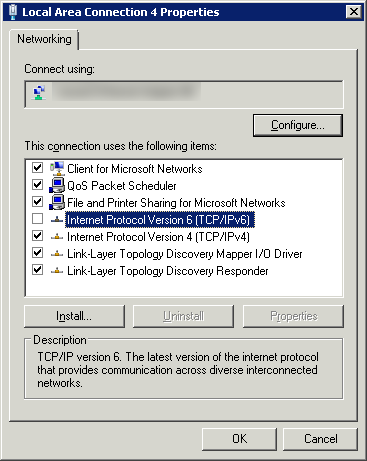
- Open Control Panel > Network & Internet > Network & Sharing Center > Change Adapter Settings > Choose the Adapter
- Right Click – Select Properties
- Networking Tab
- DeSelect IPv6
- Close
No GUI… No problem (Core):
After doing the above procedure you might have to use the registry editor aswell to completely disable the ipv6 tunnel
Here’s what to do to disable IPv6 on Core Windows Server
First check the interface that you want to disable.
WMIC NICCONFIG WHERE IPENABLED=TRUE GET Description,SettingID,IPADDRESS /FORMAT:LIST

To completely disable IPv6 on a Windows Server 2008/2012-based computer yourself, follow these steps:
- Open Registry Editor.
- Locate the following registry subkey:
HKEY_LOCAL_MACHINE\SYSTEM\CurrentControlSet\Services\Tcpip6\Parameters
- In the details pane, click New, and then click DWORD (32-bit) Value.
- Type DisabledComponents, and then press ENTER.
- Double-click DisabledComponents, and then type 0xffffffff in Hexadecimal or 4294967295 in Decimal.Note The 0xffffffff value or the 4294967295 value disables all IPv6 components except for the IPv6 loopback interface.
http://support.microsoft.com/kb/929852Also we can try this command to Disable IPv6 in Windows
reg add hklm\system\currentcontrolset\services\tcpip6\parameters /v DisabledComponents /t REG_DWORD /d 255 /f
- Reboot
- Re-run the above command to see if the interface shows IPv6 addresses
Author

Related Posts

Get all the domains controllers in the AD forest along with their current FSMO roles
In a large enterprise an admin would need to keep track of all the domains in a AD forest, the domain names,...
Read out all
Force synchronization for DFSR-replicated SYSVOL
One of my clients had a problem with processing GPO on client computers. Different computers applied different settings from the same GPO...

Get Inactive Users Report for the past 60 days in a multi domain environment
I had a request recently to provide an inactive user report for the past 60 days. Basically, find out which accounts have...

Get Primary, Secondary, Tertiary DNS values and more from Multiple Servers
Came across a unique request to get primary, secondary, and tertiary DNS values for multiple computers/servers across the domain. I started writing...

Fix Active Directory broken security inheritance problem
Ran into a situation at a client location where in Active Directory, the security permissions applied to an OU were not getting...

How to Fix: Attribute userAccountControl of DC is: 0x82020
When running a DCDiag at a customer site today I had the following error occur: [su_box title=”” box_color=”#f3f1cb” title_color=”#000000″ radius=”6″]Warning: Attribute userAccountControl...