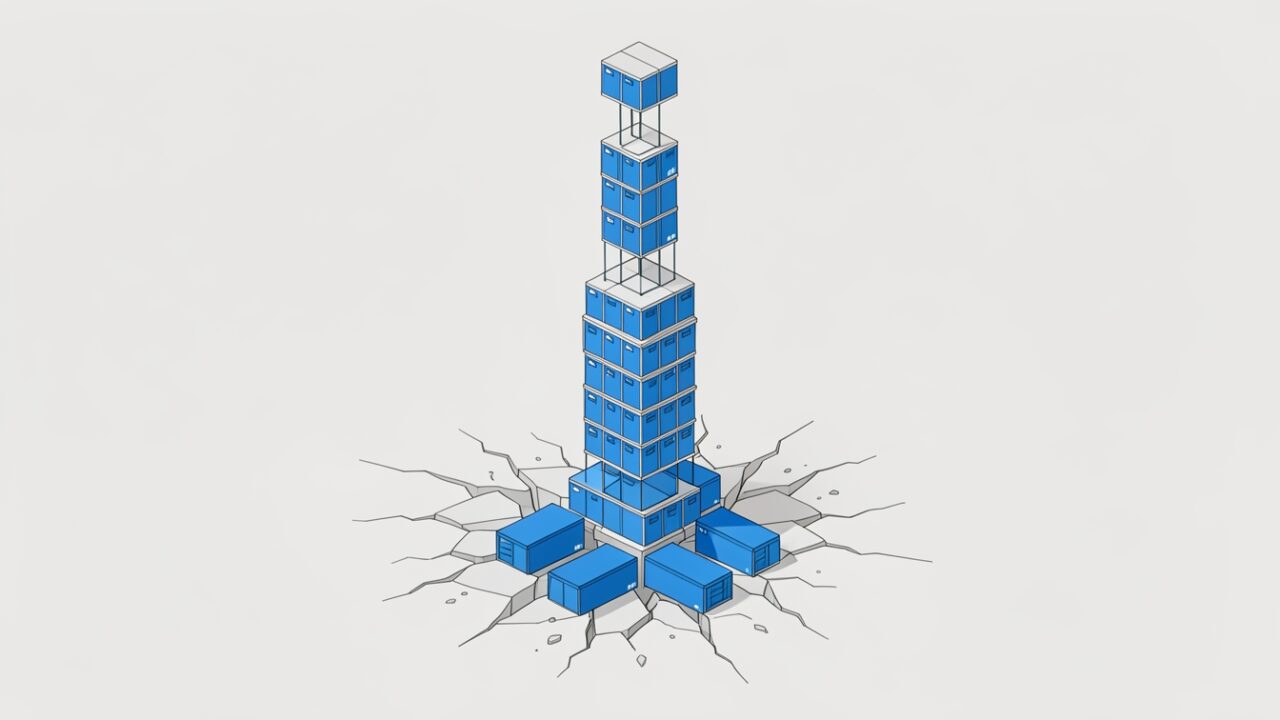
Picture a self-storage facility. You rent one unit, you fill it, and instead of calling you to upsell a second one, the staff quietly unlock the unit next door and start stacking your overflow there. From your side of the counter there’s still one address, one key, one bill. Behind the roller doors, your stuff is spread across three or four units nobody told you about.
That’s an auto-expanding archive mailbox in Exchange Online. You see a single archive. Underneath, Exchange adds auxiliary storage areas as the archive fills, chaining them together so the user never notices. It’s genuinely elegant. It also had a ceiling: 1.5 TB. And when a busy archive reached it, the facility ran out of adjacent units — and your overflow had nowhere to go but the loading dock.
Microsoft 365 Roadmap item 573702 removes that ceiling. Archives now expand past 1.5 TB with no stated cap. Before you shrug and move on, it’s worth understanding exactly what used to break, because the failure mode was quiet enough that plenty of tenants hit it without realising.
First, the mechanism — because the limit only makes sense once you see it
An archive mailbox is a second mailbox attached to a user’s primary one. It exists so old mail can move out of the primary and into long-term storage, usually driven by a retention policy. The thing that does the moving is a background service called the Managed Folder Assistant (MFA). Think of it as the night shift that walks every mailbox, checks each item’s age against policy, and relocates the expired ones into the archive. Nobody triggers it manually; it just runs.
When you turn on auto-expanding archive, the archive stops being one fixed box. The first chunk fills, Exchange provisions an auxiliary archive, the search index stitches them together, and the user keeps seeing one tidy “Online Archive” folder tree. The storage units multiply; the address stays the same.
The 1.5 TB number was the total across all of those chained units. Not a single file — the whole facility.
What “inoperative” actually meant
Microsoft’s word for a maxed-out archive was inoperative, which is doing a lot of quiet work. Here are the three things that broke when a mailbox hit the wall.
1. Growth stopped dead. No more auxiliary units. The archive couldn’t accept another byte. That’s the literal meaning — the archive became a read-only relic.
2. Retention quietly failed. This is the one that bites. The MFA night shift kept showing up, tried to move expired items into a full archive, and couldn’t. Items it was supposed to relocate stayed in the primary mailbox — or piled up in queues — while the policy reported itself as “applied.” Your retention schedule looked healthy in the portal and was silently doing nothing. For an organisation that archives aggressively to keep primary mailboxes lean, the primary then starts bloating too.
3. Compliance assumptions stopped holding. Litigation hold and in-place retention lean on the archive having room to keep growing. When the archive can’t expand, data that should have been retained and relocated has nowhere compliant to land. You don’t lose the emails sitting there, but your ability to keep capturing more under the same policy breaks — which is exactly the kind of gap that turns an eDiscovery request into an awkward conversation with legal.
None of these throw a red banner at the user. That’s what made the old limit nasty: by the time you noticed, you’d been out of compliance for weeks.
Who actually gets the unlimited expansion
This is not a free-for-all, and the brief is right to insist on it. Auto-expanding archive — and now its uncapped version — requires the right licence and the feature switched on. It applies to users with Exchange Online Plan 2 (bundled in Office 365 / Microsoft 365 E3 and E5), Exchange Online Plan 1 plus the Exchange Online Archiving add-on, or the standalone Exchange Online Archiving and compliance SKUs.
Two things that are easy to miss: the archive has to be enabled on the mailbox first, and auto-expanding archive has to be explicitly turned on. A licence alone doesn’t create a bottomless archive. And once you enable auto-expanding archive on a mailbox or tenant, you can’t turn it back off — it’s a one-way door.
As for timing: the roadmap item doesn’t publish a universal rollout date or a per-tenant wave schedule, so don’t promise your boss a day. Check your own tenant rather than assuming the change has landed.
Where this lives in the admin centers
For a single mailbox, go to the Exchange admin center → Recipients → Mailboxes, pick the user, and open Others → Manage mailbox archive. That shows whether the archive exists and its current size. For the storage policy and retention behaviour feeding it, the governance side lives in Microsoft Purview → Data Lifecycle Management. Neither surface gives you a clean “which of my mailboxes are near the old 1.5 TB line” view — for that, you need PowerShell.
Auditing it properly
Archive sizing is Exchange Online territory, so this uses the ExchangeOnlineManagement module. First, a read-only audit — find every active archive, pull its real size, and flag anything over 1 TB so you know who was approaching the old cliff.
Sort by size, and pay attention to any row where AutoExpandingEnabled is False but the archive is already large — those are the mailboxes that would have smacked into the wall first.
If the audit turns up archives that need auto-expanding switched on, do it from a reviewed list — never pipe a live query straight into a state-changing command, especially one you can’t undo. Export the audit, delete the rows you don’t want touched, and feed the survivors back in with -WhatIf until the preview reads exactly right:
To check the tenant-wide default, run Get-OrganizationConfig | Select-Object AutoExpandingArchiveEnabled. You can flip it on org-wide with Set-OrganizationConfig -AutoExpandingArchive -WhatIf — same irreversibility warning applies, at a much bigger blast radius.
The honest read: for 95% of tenants this change is insurance you’ll never claim, because very few individual archives approach 1.5 TB. But the few that do are exactly the mailboxes where failure is most expensive — the executive under legal hold, the shared archive swallowing a decade of a whole department’s mail. Removing a silent cliff from your most-regulated data is worth the ten minutes it takes to run the audit above. Run it, flag anything past a terabyte, and confirm expansion is on before the night shift finds out the hard way that the storage units ran out.