
Security Groups are great for managing large groups for permissions. Â A client requested that they needed to have Read-Only, Read-Write, and Ready-Modify (allow for deleting) for all their file shares for better management.
Getting the Share Names
In order for me to create the groups I needed the share names. PowerShell to the rescue!
Type the following on the File Server/ Cluster to list all the shares and capture the output in a text file:
WmiObject -class Win32_Share -computer <yourfileserver.fqdn) | Out-File c:\scripts\shares.txt
[su_note note_color=”#fafae8″]On your file-server you may have a lot of share but for example purposes I am showing just one.[/su_note]
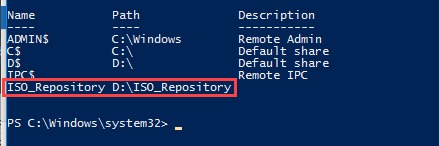
Output should be similar to:
Cleaning up the Share Names
Now that we have the Share names we need to do a bit of cleanup to avoid having duplicates.
- We need to remove all entries for hidden shares “$”
- We need to remove duplicates
- We need to change the case of the share names to lower case. ( I prefer lowercase but you can decide to do what best fits your needs)
Follow my guide to removing duplicates in a text file using NotePad++
Once the sharenames are clean save it to a text file.
Client Requirement for the Security Groups:
For each file share there are three security groups needed:
- <Sharename>_RO : Read-Only
- <Sharename>_RW : Read & Write
- <Sharename>_RM : Read & Modify
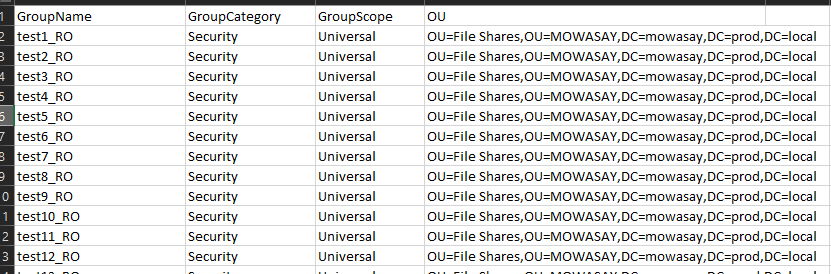
For PowerShell to do this I needed to create a .CSV file with all the security group entries. Now, there are many ways this can be done. I will share what I have been doing.
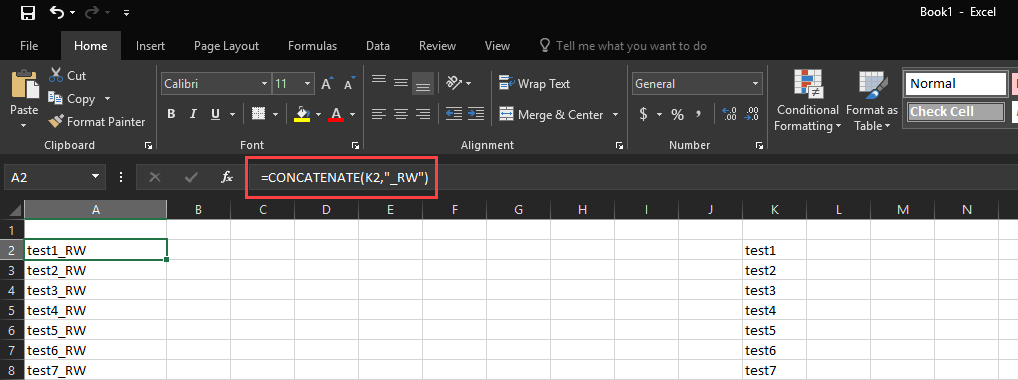
Open up Microsoft Excel and copy the share on a column to the right (lets say K2)
Now on Cell A2 your value should be =CONCATENATE(K2,”_RW”) and drag it down.
It should look something like this:
Do the same for RO & RM. Now you have all the security groups names you need to create.
Create a file called FileShares_Groups.csv using the following format.
Create the file Create Security Groups for File Shares.ps1
.NOTES
	File Name:
	Author: Mohammed Wasay
	Contact Info:
		Website:www.mowasay.com
		Twitter:@wasay
	Requires:
	Tested:
.PARAMETER
    None

.EXAMPLE
    .\Create Security Groups for File Shares.ps1
#>
#Import Active Directory Module
Import-Module ActiveDirectory

$csv = Import-Csv -Path "c:\scripts\FileShares_Groups.csv"

ForEach ($item In $csv)
    {
        $create_group = New-ADGroup -Name $item.GroupName -GroupCategory $item.GroupCategory -groupScope $item.GroupScope -Path $item.OU
        Write-Host -ForegroundColor Green "Group $($item.GroupName) created!"
    }
Copy the two files: FileShares_Groups.csv & Create Security Groups for File Shares.ps1 into a folder called C:\scripts on the Domain Controller.
Run the PowerShell script and see the security groups get created.
Author

Related Posts

Get all the domains controllers in the AD forest along with their current FSMO roles
In a large enterprise an admin would need to keep track of all the domains in a AD forest, the domain names,...
Read out all
Force synchronization for DFSR-replicated SYSVOL
One of my clients had a problem with processing GPO on client computers. Different computers applied different settings from the same GPO...

Get Inactive Users Report for the past 60 days in a multi domain environment
I had a request recently to provide an inactive user report for the past 60 days. Basically, find out which accounts have...

Get Primary, Secondary, Tertiary DNS values and more from Multiple Servers
Came across a unique request to get primary, secondary, and tertiary DNS values for multiple computers/servers across the domain. I started writing...

Fix Active Directory broken security inheritance problem
Ran into a situation at a client location where in Active Directory, the security permissions applied to an OU were not getting...

How to Fix: Attribute userAccountControl of DC is: 0x82020
When running a DCDiag at a customer site today I had the following error occur: [su_box title=”” box_color=”#f3f1cb” title_color=”#000000″ radius=”6″]Warning: Attribute userAccountControl...